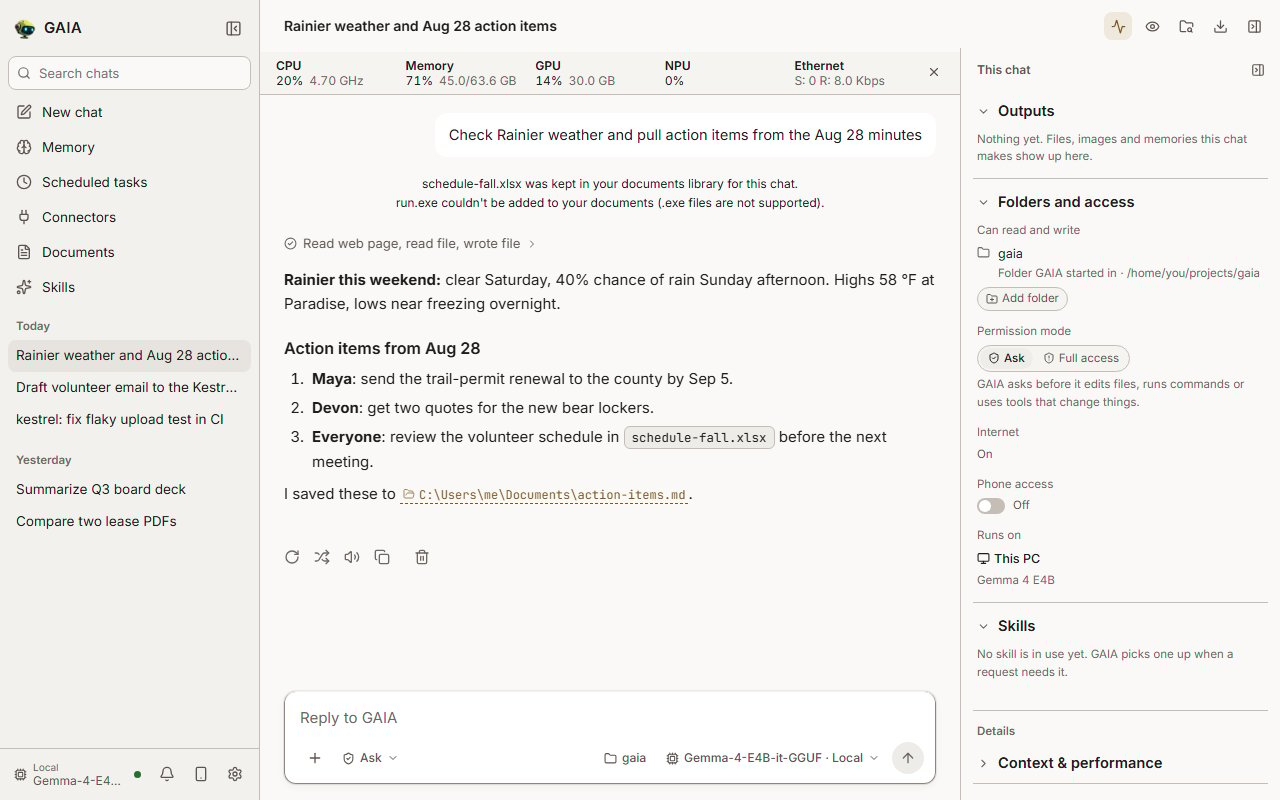
The message box
- Message box: + attaches files (or drag them in), the shield picks the permission mode, the model chip picks the model, and Send turns into Stop while GAIA is working. In a chat, the folder chip beside the model names the folder GAIA works in; click it to see and manage the chat’s folders in the session panel.
Enter sends and Shift+Enter starts a new line. The rest are under Shortcuts.
While GAIA works
- While GAIA works the reply builds up as a timeline. Short notes GAIA writes before a tool call (“I’ll check the forecast first”) appear in full, each step shows as one line with its own timer, and live reasoning scrolls by under Thinking. A line at the end says what the model is doing between steps. Picking up a skill gets its own highlighted line.
- Once the answer is in, the steps between two notes fold into one line (“Read web page, read file”) you can open for the detail, and reasoning folds to “Thought for 8s”.
The line under an answer
- The line under an answer says how long it took and where it ran (“Answered in 40 s on your GPU”, or “via Fireworks AI” for a cloud model). Hover or click it for the rest: when the first word came, how many steps GAIA took, and the exact numbers, including the tokens the whole turn read and wrote across every model call. “Steps” is the agent’s own count, the same figure the TUI and evals report. Files the answer names by full path, such as a saved deliverable, open in your file explorer when clicked. So does a file the answer names only by file name, in code formatting, when it is one of the files that turn wrote; two written files with the same name stay plain.
Type while GAIA works
You can keep typing while a reply runs. Press Enter and the message waits in a queue above the message box, then goes out as its own turn as soon as the reply ends, in the order you typed. To add a detail to the work already running, press Add to this reply on a queued message: GAIA reads it at its next step without starting over, though it may not answer it separately. If the reply ends before reading it, it goes back in the queue. If the reply can’t take it, the message says so and waits to go out when the reply ends. Press Stop and anything still queued goes back into the message box. A stopped answer keeps what it wrote so far. Continue asks GAIA to carry on from there, and Try again asks the question afresh. Each chat keeps its own queue. Switch to another chat and the queued messages still go out when their chat’s reply ends, and the chat list shows how many are waiting. They survive a reload of the app too. A message that can’t be sent stays in the queue marked Not sent, with the reason and Send again, and the messages after it wait so the order holds. Deleting a chat deletes its queued messages; the delete button says how many first.Edit a message or try again
To fix a sent message, hover it and choose Edit message, or press the up arrow in an empty message box to open your last one. Change the text and press Enter: GAIA answers the edited message, and the turns after it are replaced. Escape leaves the message as it was. Try again on the latest answer asks the same question again with the same model.Compare models on your question
To see how another model answers, use Retry with… on the latest answer and pick a model downloaded on this PC. On a chat answered by a cloud service, the menu lists that service’s other models first, then the models on this PC; a cloud model answers without loading anything here, and nothing goes to another service. Both answers appear side by side with the time each took and, for a model on this PC, its speed. Keep this answer on either one, and the chat continues from it. The other model answers from what the first reply already gathered and doesn’t run tools again. It loads after the first answer, since the model server holds one model at a time, so the reported time includes loading it. Your next message loads the chat’s own model again.Cards for recipes, workouts, plans and calculators
Ask for a recipe, a workout, how to fix something, a packing list, a trip plan, a tip split or a loan payment, and the answer arrives as a card you can use rather than a wall of text. The Try row on a new chat fills in an example of each, and the first card you get carries a short tip on what it can do.
Start cooking, Start workout and Start open the steps full screen,
one at a time, with a large timer for the step. Use the arrows or the ← and →
keys to move, and Esc or the X to leave. A running timer keeps going
when you leave. Every card can be copied as plain text, and recipes and guides
can be printed.
“Give me a recipe for banana bread” “Split a $142 dinner four ways with a 20% tip”The model fills in the card and the app does the math, so amounts and payments are exact even on a small local model.
Images and audio
An image the agent generates shows in the answer; click it to see it full size. Images you attach show as small tiles in the message; click one to see it full size and use the arrows to step through the others in that message. Music and sound effects it generates show a player with the file name and length (see Local Music and Sound Effects). Both still show when you reopen the chat. Only files GAIA saved in its own generation folders are shown this way. Speaking to GAIA through a microphone is not part of this; voice input is tracked in #702. Recordings and video links can be transcribed in a chat too; see Transcription & Recording Analysis.Read aloud
The speaker button on a reply reads it in a voice that runs on this PC through Lemonade; press it again to stop. Code blocks and links are skipped, so you hear the words. Settings → Read aloud picks the voice (American or British English, female or male, with Preview), the speed (0.5× to 2×), and whether every reply is read when it finishes. The voices speak English, so a reply in another language is read with an English accent. The first reading after a restart takes longer while Lemonade loads the voice. On a PC without the voice model, the first press downloads it once (~350 MB) and says so under the reply; reading starts when it finishes. (The agent’s owntext_to_speech tool never downloads it in the middle of a chat.)
The terminal app uses the same voice and speed, and so does GAIA when you ask it to save speech to a file.
Private chat
- Private chat: the eye button in a chat’s header. An open eye means the chat is remembered as usual, and a click makes it private. While the chat is private the button is filled and shows a crossed-out eye, the same eye that marks the chat in the sidebar, and a click turns private off. A private chat isn’t saved to memory and can’t change or erase what is already there. To keep a new chat’s first message out too, open the Remember across chats: on chip next to the message box and choose Private chat before you send it.
Several chats at once
One chat at a time on the model. A second chat sent while another is working waits its turn and says so (“Waiting for the GPU — 1st in line”, also on its row in the sidebar), then runs when the first finishes. Stop takes a waiting chat out of the line. A chat waiting on you (a permission prompt or a question) steps out of the line until you answer, then goes ahead of chats that arrived meanwhile. Chats on a cloud model don’t wait for the line at all.Long chats
What GAIA keeps in view
In-process chat agents retain file reads, tool calls and tool results for later questions, including after the server restarts. Complete older turns leave the model’s context only when its estimated history budget fills; the transcript and stored evidence remain on your machine. A single turn too big for that budget stays in view shortened: long tool results become a one-line note naming the tool, and its longest messages are cut with a note saying how much. When more older turns leave the model’s view — a long chat, or a switch to a smaller model — the chat shows one quiet line before the reply — “Older messages are now out of the model’s view (N turns)” — and the TUI shows the same line in its transcript. Ask GAIA to recall anything from before it. The model is told too: a short note where its view now starts says earlier turns exist and are no longer shown, so it says it can no longer see something from them instead of saying you never mentioned it. A GAIA agent relayed from the Agent UI gets the text of earlier turns under the same budget. A single message too long for that budget reaches the model cut short, with a note saying how many characters were cut, and the chat says so the same way. Earlier conversations saved before this feature retain text only. If the current prompt leaves no history budget, GAIA warns and sends no older turns; saved evidence remains intact. Switching to a model without native tool calling replays recorded calls and results as text.See how full the context is
The meter beside the model chip shows how much of the model’s context window the next message carries. Click it for the breakdown: system prompt, tools, documents, conversation, and the room kept free for the reply. As the window fills, a one-line note above the message box says the oldest turns will soon drop out of the model’s view; Details names them by their question, and you can dismiss the note until another turn reaches the edge. They stay saved, and you can ask GAIA to recall them. For more, choose Details: context & performance in the meter’s breakdown. It opens the Context & performance section of the session panel, which shows what fills the window (system prompt, tool definitions, skills, memory, documents, messages and free space), counted with the model’s own tokenizer when it is loaded and marked approx. when not. Tools that load only when a turn needs them are listed apart. Below that, the panel shows what is live in the window and, once GAIA has made room, how many older tool results it moved out of the prompt. They stay readable, and GAIA reads them again when needed. When the window fills up, the oldest turns may drop out of the model’s view; they stay saved, and you can ask GAIA to recall them. Under the hood shows the last turn or the whole chat: where the model runs, time to the first word, how fast it read the prompt and wrote the answer, tokens in and out, how many were reused from the prompt cache, time in the model against time in GAIA (tools, waiting on you, GAIA’s own work), tool calls, model loads, model memory and cost. Hover a number for the exact value. Anything that was not measured says “unknown”. The panel reads nothing until you open it.Long responses
A chat reply has no time limit while the agent is making progress: model output, a tool starting or finishing, any step. A running tool, or a question or permission prompt waiting on you, also counts, since each has its own time limit. A model that stops sending is handled by GAIA’s model-stall check, which ends and retries the request. GAIA stops a reply only after 75 minutes with no progress at all, and the reply says so: “This turn ran for 75 minutes without progress, so GAIA stopped it.” Anything finished before then is kept; send “continue” to pick up where it left off. Change the window withGAIA_STREAM_TIMEOUT, set before GAIA starts: