Ask about a document
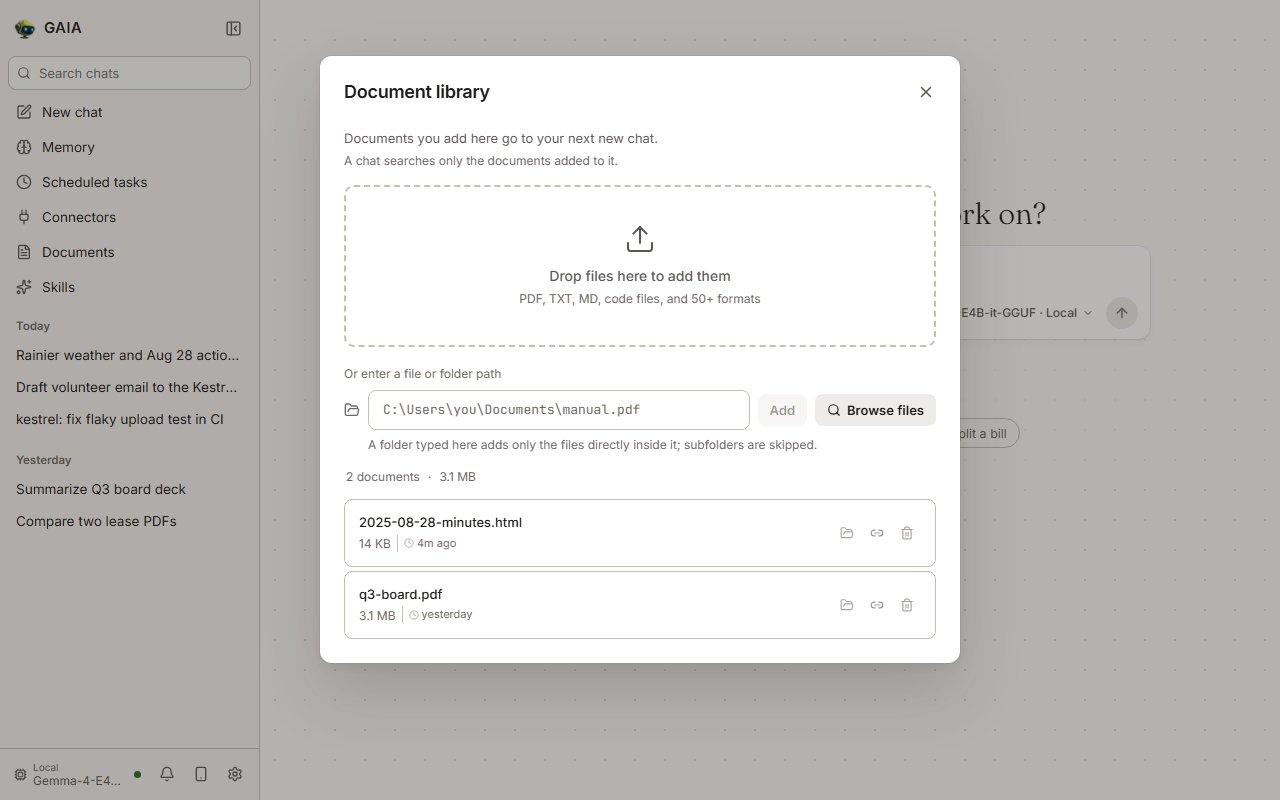
“Summarize this PDF in 3 bullet points” “Compare these two contracts and list the differences” “What’s the total spend in this expense report?”A chat searches only the documents attached to it, never the whole Document library, so one chat’s files don’t leak into another’s answers. The library says where the documents you add go: the open chat, or your next new chat. A new chat lists the library’s documents and offers to attach them; picking Ask about your documents attaches them all. A document you ask the agent to index (“add this file to my documents”) goes into the library and is attached to the chat you asked in, the same as one you add from the library. A file outside the folders the library reads from goes in as a copy, and the chat says so: edits to the original don’t reach the copy. A chat searches at most 100 documents, or 10,000 passages (about nine long books), at once. Attach more and the bar above the chat says so, naming the limit the chat reached: the document count, or the passages a few long documents fill. The first ones attached are searched, and asking about any other attached file by name loads it for that question. While a large document indexes, its row in the library shows how far it has got: “Reading page 37 of 229” for a PDF, then “Embedding 412 of 1,180”, each with a percent. Formats without a page count show a moving bar and the count so far. When an answer names a document from your library, the name is a link that opens the document, and each page it cites (“pages 175 and 205”, “الصفحتان 6–7”) opens that page. In the desktop app they open in your web browser. When two documents share a name, each link shows the folder that tells them apart (
2023/report.pdf), and a bare shared name stays plain text rather than
opening the wrong one.
Indexing problems are covered under Troubleshooting.
Find anything on your PC
Ask the agent to locate files across your drives — by name, type, content, or recency. No more digging through folder trees.“Find all Python files in my Downloads folder” “Show me the largest files on my Desktop” “Search my project for files that import pandas”The agent searches your common folders first, then offers a deep search across all drives if nothing turns up.
The folder GAIA works in
- A new chat greets you and, under the message box, names the project folder GAIA works in when you started it from one. Add a folder gives the chat another folder it may read and write from its first message, the same as Add folder in the session panel; the picked folder shows as its own chip, and its × drops it again. The chat’s agent is told which folder the chat is working in, so “this folder” means the one you picked. This works when GAIA runs its agent as its own process too, as an installed GAIA does. Only an agent too old to be given folders shows no Add a folder button; update GAIA to pick one. In the desktop app this opens your computer’s own folder picker; in a browser GAIA shows its own, where hidden folders (names starting with a dot) stay out of the list until you tick Show hidden.
The session panel
Each chat has a panel on the right that keeps the important facts in view: what the latest answer used, where the chat runs and what it may touch, what fills the context, what the chat produced, and what it changed. Show or hide it with the panel button at the right of the chat’s title bar. Drag its left edge to resize it (or focus the edge and use the arrow keys); the width, whether it is open, and which sections are expanded are remembered. On windows narrower than about 1,100 px it opens on top of the chat instead, and Escape closes it. The panel reads when it opens, when you expand a section, and when an answer finishes. It never checks on a timer, and a closed panel or a collapsed section reads nothing. It leads with what the chat made and may touch: This answer, Outputs, Changes, Folders and access and Skills. How the chat ran, Context & performance and Agent info, sits last under Details; those sections start collapsed.-
This answer shows what the latest turn used and where its data went:
- Sources: the web pages it read and the document passages it drew on, named by file and page.
- Files: what it created or changed, with Open and Show in folder. Scripts, programs and web pages offer only Show in folder, because opening them would run code. A file deleted since the turn shows as no longer on disk, and one changed since then says so.
- This turn: where the model ran (This PC, or the cloud provider such as Fireworks AI or the AMD LLM Gateway), whether your documents stayed here, which websites GAIA’s web tools contacted, and the cost (a list-price estimate for Fireworks models).
-
Folders and access shows what the chat may touch and where it runs. Each
change applies from GAIA’s next step, without a restart:
- Can read and write: the folders and files GAIA may use in this chat, and where each came from. Add folder gives it another folder, picked the same way as from a new chat’s folder; Remove takes one away. A removed folder is refused by every file and shell tool, even under full access and even inside a wider folder, until you add it back. A document attached to the chat is removed from the document bar instead, which also takes it out of the chat’s search.
- Permission mode: Ask or Full access, the same setting as the shield in the message box. It covers this chat only; new chats follow Settings → Permissions.
- Internet: this is a filter, not a firewall. Turn it off and GAIA
refuses recognised web, browser, connector, mailbox, Agent Hub and
network-command tools (such as
git push,pip installornpx). Commands that talk only to this PC, such ascurl http://localhost:3000, still run. Skill tools, scripts and commands that hide their destination may still reach the network because GAIA cannot inspect every operation. The message box says the chat is offline, with a button to turn it back on. - Phone access: turns mobile access on or off, shows the QR code, and names the phone that connected. On the phone, Add to Home Screen (Safari’s Share menu, or Chrome’s menu) installs GAIA as an app that opens full screen. The app does not keep access between sessions: each time you turn mobile access on, scan the new QR code, and if the home-screen app no longer connects, open the new link and add it again.
- Runs on: this PC with its device and backend (for example
GPU · Vulkan), the model and the memory in use, or the cloud provider.
- Context & performance is the breakdown described in See how full the context is.
- Outputs lists everything the chat produced, newest first: files created or changed, exports (PDF, Word, Excel, CSV and similar), images, documents indexed, scheduled tasks and memories saved. Each shows when it was made and Go to turn scrolls to the answer that made it. Files have Open and Show in folder, with the same rule as above for scripts and web pages. Items an undo removed show as Undone.
-
Changes appears once the chat has changed files. It totals them, such as
“4 files changed, +120 −8”, and lists each file with the turns that touched
it.
- Review changes shows each file as one diff, from before the chat’s first turn to after its last.
- Undo all puts every file the chat changed back as it was before the chat, after you confirm. Like undoing one turn, it is all or nothing: if a file changed outside GAIA since, it names the file and changes nothing until you choose to undo anyway.
- When the files are in a git repository, Commit and Create PR open
a message drafted from your requests in this chat, which you can edit.
Nothing runs until you press the button in that dialog, whatever the
permission mode. Commit includes only the files this chat changed, and
leaves out any that git ignores (the dialog names them) or that sit in a
folder you removed.
Create PR pushes the current branch (never forced) and opens the pull
request with GitHub’s
ghtool; it isn’t offered from the default branch or while the chat’s internet is off.
Undo a turn
Before GAIA changes a file, it saves a copy. When a turn changed files, its answer shows Review changes and Undo this turn:- Review changes shows what the turn did to each file, as a diff.
- Undo this turn puts every file back as it was before the turn: edited and deleted files get their old contents, new files are removed. It works after GAIA restarts too.
del notes.txt,
rm notes.txt or powershell Remove-Item notes.txt, is the exception: GAIA copies those
files first, so they show as deleted files with a diff and Undo puts them back.
A delete with a wildcard, a variable, a folder or a file outside the workspace
is still listed as a command GAIA can’t track.
A Python snippet or script that may change files gets the same care for the
folders its code names by full path, such as a “tidy my inbox folder” snippet
that moves and renames files into subfolders: GAIA copies the files in those
folders before it runs, so Undo puts each file back under its old name and
removes the new files and folders. Up to 1,000 files and 128 MB are copied
for one run; a folder past that, or with a file another app has locked, isn’t. The snippet is still listed as one GAIA can’t track,
because it could also have changed files somewhere else.
Settings → Privacy → Undo history sets how long copies are kept (7 days by
default) and how much space they may use (500 MB, oldest first), and shows how
much they use now.
Your chats
- Sidebar: search, New chat, Memory, Scheduled tasks, Connectors,
Documents and Skills, then your chats. Memory opens as a page;
Scheduled tasks and Documents open as dialogs over your chat; Connectors and
Skills open their tabs in Settings.
Needs you at the top holds chats waiting on a permission or a question;
Pinned comes next, then Today, Yesterday, Previous 7 days
and older. A dot on each chat says whether it is running, waiting for you, done
or failed, and a chat with a reply you haven’t read shows in bold. Eval and
scheduled runs are hidden behind Show background runs at the end of
the list. To rename a chat, double-click it or click the pencil on its row;
Enter saves, Escape cancels. On a phone, each chat has one ⋯ button instead
of the pencil, pin and delete icons; it opens Rename, Pin and Delete,
and Delete asks for a second tap. At the bottom: where answers are generated
right now (the place, such as Local or Fireworks AI, above the model’s name;
hover for the full text),
notifications, mobile access and Settings. Collapse it with
Ctrl+B(⌘Bon macOS). - Search chats (
Ctrl+K,⌘Kon macOS): finds a chat by its title or by anything said in it, ignoring case and accents, soresumealso findsRésumé. A chat that matched inside a message shows the line around the match. Use the arrow keys andEnterto open a result,Escapeto clear. Private chats are searched too; the search runs on your PC and nothing is sent anywhere.
chat, doc and
file agents stay readable but can’t be continued; start a new chat instead.
Export a chat
Sessions let you organize conversations by topic. They sync between the CLI (gaia chat) and the Agent UI — start in one, pick up in the other. Export any session as Markdown or JSON from the session menu.
Delete a chat
Deleting a chat removes its queued messages too; the delete button says how many first. Deleting a chat, one at a time or with Settings → Privacy → Delete all chats, also removes its conversation and tool calls from Memory. What GAIA learned about you from it stays under About you in Memory; the delete confirmation says so.Shortcuts
On macOS, press
⌘ where this table says Ctrl; the app labels its shortcuts that way there.