Ctrl+, (⌘, on macOS). The tabs below are in the app’s order.
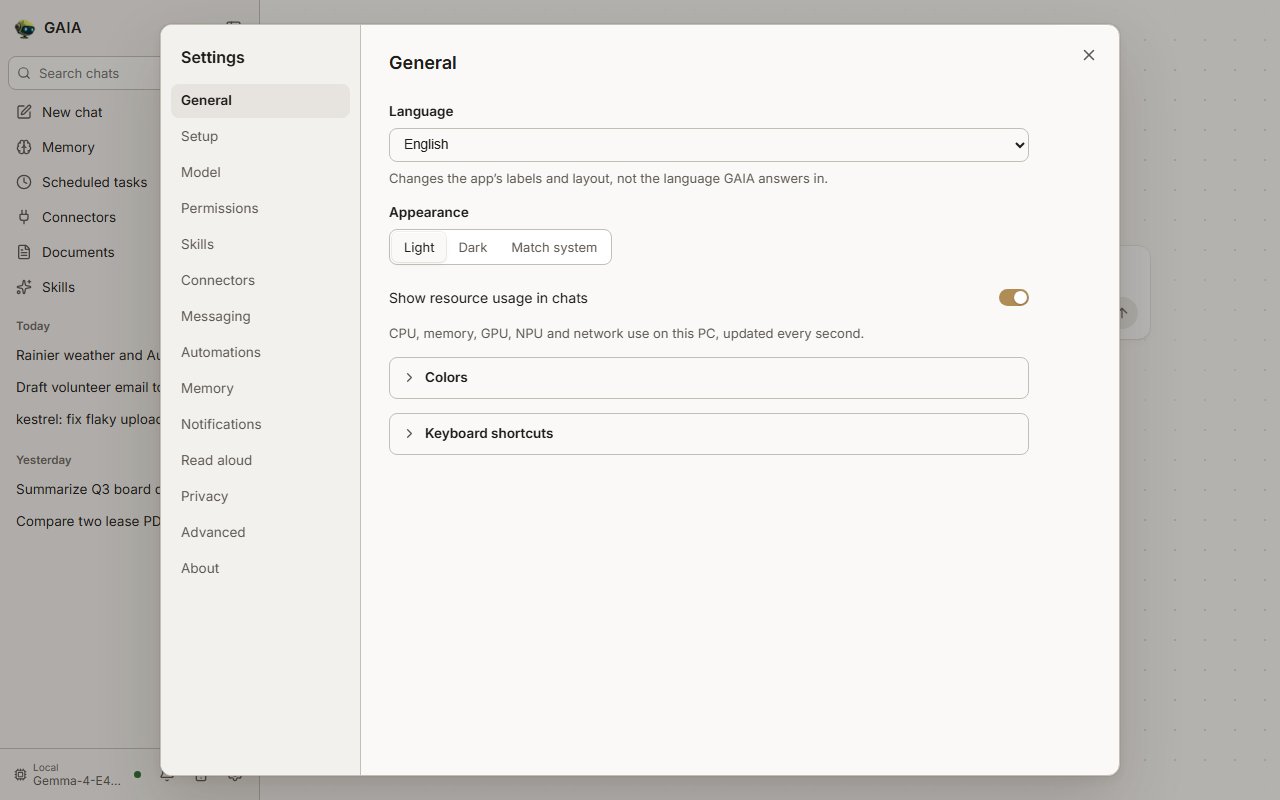
Settings
General
Language, appearance (Light, Dark, Match system), colors, Show resource usage in chats, shortcuts, and in the desktop app the tray switches and updates. Language switches the app’s labels between English and العربية (Arabic). In Arabic the whole layout reads right to left, with the sidebar on the right, and each label keeps its English in brackets, such as “محادثة جديدة (New chat)”, set smaller and lighter so the Arabic leads. It changes the app, not the language GAIA answers in, and this device remembers it. In either language, each paragraph of an answer runs in its own direction, so an answer mixing Arabic and English shows each part the right way round, and code always reads left to right. Colors keeps the warm gray look by default. Pick one of eight palettes instead (Stone and ink, Blue marble, Glacier, Forest floor, Sage and mist, Basalt and lichen, Graphite and gold, Dusk), or Custom to choose your own accent and background tint. Each works in light and dark, and with custom colors the text shades adjust on their own so everything stays readable.Setup
Settings → Setup lists everything setup chose, each with a link to where you change it, and Run setup again goes through it once more. Your models, keys and chats stay. See Setup in detail.Model
The model in use, context size, the models on this PC, cloud providers and keys, and this month’s cloud spend. See Choose a model.Permissions
Every chat with full access or “always allow” answers, and Start new chats in full access. See Permissions.Skills
What GAIA can load and where each skill came from. See Skills.Connectors
Your accounts and services. See Connectors.Messaging
Discord. See Discord.Automations
Reminders, summaries, alerts and triggers. See Automations.Memory
Turn memory on or off. See Memory.Notifications
A banner, a badge or nothing for each event, and keeping the PC awake. See Notifications.Read aloud
The voice, the speed, and whether every reply is read. See Read aloud.Privacy
Local only, where your data is kept, Delete all chats and undo history. See Privacy.Advanced
The model server and llama.cpp backend, custom model ID, beta options, MCP servers, logs and roll back. The model server is covered below.About
The version, with Copy version, and links to what’s new, the documentation and the issue tracker.The model server
Local chat runs on Lemonade Server. Most people never need this section: GAIA installs, starts and stops its own.When GAIA’s model server runs
Local chat runs on GAIA’s own Lemonade Server, the onegaia init installs.
GAIA manages it for you, and it gives its memory back when you stop using GAIA:
Every GAIA process that talks to the server holds a lease on it while it
runs: the app, each
gaia command, sidecar agents, and a process started with
another GAIA_HOME that points LEMONADE_BASE_URL at this server. The server
is never stopped while a lease is held or a request is in flight.
The server keeps the same port and API key from one start to the next, so a
chat that was open before a restart keeps working. If another program has taken
the port, the server moves and gets a new key. Read the current key from
~/.gaia/lemonade/env.sh (env.ps1 on Windows).
Fifteen minutes balances giving the GPU memory back to other apps against
the cost of a cold model load, about 20 to 60 seconds, the next time you use
GAIA. Change it, or turn the timeout off with 0:
LEMONADE_BASE_URL: GAIA never unloads its models or stops it.
Which server and which GPU backend
Settings → Advanced → Model server shows what is actually running:- Server: GAIA’s own Lemonade or yours (another Lemonade on this PC, or one on another machine), with its version.
- Address: the URL and port GAIA talks to.
- Chat model and Runs on: the loaded model and its llama.cpp backend (Vulkan, ROCm, CPU), NPU, or Remote (cloud). “Lemonade’s default” means the load did not name a backend and Lemonade picked it. unknown means this Lemonade does not report it.
- Context window and the Embedding model with its backend.
- One row for each other model this Lemonade has loaded (speech, transcription, vision, reranking, image or 3D), labelled by its type, with its name, backend and context window.
gaia init --gaia-lemonade installs it and switches. See
Use a Lemonade you already run.
Logs
Every log GAIA keeps is readable in the app, so you can see what went wrong and share it without a terminal. Open them from:- Settings → Advanced → Logs, with View logs and Save all logs;
- the Model server log button in the sidebar’s model popover (click Local · model at the bottom of the sidebar), or in Settings → Advanced → Model server;
- under a reply that failed on a local model.
Warnings are yellow and errors red; Warnings and errors only hides the
rest. With Follow new lines on, new lines appear every two seconds and the
view stays on the newest unless you scroll up. Copy and Save to file
take the lines shown. Save all logs writes every log, with this PC’s
details, into one file to attach to a bug report (the same bundle as
gaia diagnostics).
Where the model server’s lines come from:
API keys, bearer tokens and similar secrets are removed from every line,
on screen and in a saved file. A line can still quote your chat, such as a
prompt the backend printed, so read it before you share it. Logs aren’t
available over mobile access.
Troubleshooting
Lemonade Server not running
Lemonade Server not running
You shouldn’t have to start the model server yourself — The usual cause is that GAIA isn’t set up yet. The app shows its setup steps in that case;
gaia daemon starts and supervises it. So the question is why that didn’t happen.gaia init from a terminal does the same.A model won't load, or a reply says it couldn't reach the local LLM
A model won't load, or a reply says it couldn't reach the local LLM
Open the logs: press Model server log under the failed reply, or in the sidebar’s model popover. Turn on Warnings and errors only to find the line that explains it, such as a backend that exited, a device that was busy, or memory that ran out; the GAIA tab shows the same failure from GAIA’s side. To report it, use Save all logs and attach the file.
Mobile access says ngrok is required
Mobile access says ngrok is required
Mobile access reaches this PC from your phone through ngrok, which you install once. The dialog shows the install command for your system with a Copy button; run it, then press Retry. ngrok also needs a free account’s authtoken:Copy the token from your ngrok dashboard.
No model loaded
No model loaded
Port 4200 already in use
Port 4200 already in use
Database locked error
Database locked error
Close any other GAIA Agent UI or CLI instances. Only one writer at a time is supported.
Document indexing fails
Document indexing fails
- The reason shows under the document in the library. A damaged, password-protected or scanned (no text) PDF is marked Can’t be read: retrying won’t help until you re-export the file, remove the password or run OCR on it
- Ensure the file is a supported format and does not need a password to open (PDFs with only permission restrictions index fine)
- Keep file size under 100MB
- For PDF image extraction, download the VLM model:
gaia download --agent chat - Two large documents index at a time and the rest wait their turn; small files (under 20 MB) have their own two slots, so they never wait behind big ones. A document that keeps making progress indexes to the end however long it takes. One that makes no progress for 10 minutes stops with an error that says so; to allow longer stalls, set
GAIA_INDEX_TIMEOUT(seconds without progress) before GAIA starts, e.g.export GAIA_INDEX_TIMEOUT=1200
GAIA can only read documents under ...
GAIA can only read documents under ...
Documents can only be read from an allowed root. By default that is your
home directory — a path elsewhere on disk is rejected with HTTP 403.
GAIA gives the same answer whether or not a file exists there, so it can’t
be used to probe the rest of the disk: if the path might be mistyped, check
it first. A missing file inside an allowed root says it doesn’t exist.
Dropping the file onto the Document library works from anywhere: GAIA
keeps its own copy (up to 20 MB).This bites on service accounts and CI runners, whose home
(Each entry must be an absolute path to a directory that exists; a relative
or missing one fails the request with HTTP 500 rather than being ignored.
The containment check still applies — declaring a root widens access to
that root only, never to its parent, and a symlink escaping it is still
rejected.Two limits worth knowing before you set this:
C:\Windows\System32\config\systemprofile) is not where their files live.
Add the extra directory before starting the server:- A declared root is browsable and previewable, but not searchable. File search and “open in file manager” still only look at your home directory, so files under a declared root are reachable by path but will not turn up by name.
- The roots apply to every client of the backend, including one reaching it over the tunnel feature. Declare only what you would be comfortable serving remotely.
First-run network egress to huggingface.co
First-run network egress to huggingface.co
The first time you index a document, Lemonade Server pulls the embedding
model (
user.embeddinggemma-300m-GGUF, ~334 MB) from huggingface.co,
cached under ~/.cache/huggingface/hub/. Subsequent runs are offline.If your environment blocks huggingface.co, pre-seed the cache on a
machine with internet access and copy it to the target machine, or set
HF_HOME to point at a pre-populated cache directory before launching
the UI.Frontend shows JSON instead of the UI
Frontend shows JSON instead of the UI
The Agent UI frontend has not been built.npm install (Then restart
gaia-ui): This is handled automatically — gaia-ui tells the Python server where to find the pre-built frontend. If you still see this error, try reinstalling: npm install -g @amd-gaia/agent-ui@latest Then restart with gaia-ui.Source/dev installs (git clone): Run gaia init to build it automatically, or manually (from the repo root):gaia chat --ui.pip/PyPI installs (without gaia-ui): Use the npm install path — the pip package does not include frontend source files.LLM response times out or fails
LLM response times out or fails
When a reply comes back empty, GAIA checks Lemonade Server before saying why. “The model returned an empty answer” means the server is fine: send the message again or pick another model. A message naming Lemonade means the server isn’t responding (it says how to start it), it rejected GAIA’s API key (check If it contains servers you don’t recognize or aren’t running, either remove them or reset the file:You can also manage MCP servers through the Agent UI settings panel or with the CLI:
LEMONADE_API_KEY), or the model isn’t loaded.Slow or timed-out replies can also come from your MCP server configuration. Misconfigured or unreachable MCP servers cause the agent to wait up to 10 seconds per server before responding.Check your config: