Skills
A skill is a set of instructions GAIA picks up when a request needs it: summarizing, coding, working with files and more. You don’t turn one on; GAIA loads it when it fits, and the chat shows a highlighted line when it does. Skills in the sidebar opens Settings → Skills, which lists what GAIA can load, grouped by where each came from: built into GAIA, your~/.gaia/skills folder, the .claude/skills folder of the project GAIA is working in, or your other Claude Code skill folders. Use tries one, and Add skills adds them from a link.
See Starter Skills and Add skills from a link.
Connectors
A connector gives GAIA access to an account or service: Google or Microsoft for mail, calendar and files, GitHub, web search and more. Set them up under Connectors in the sidebar, which opens Settings → Connectors. GAIA still asks before it acts for you. See Connectors for each one’s setup.MCP servers
The agent supports the Model Context Protocol in both directions — connect external tools to expand what the agent can do, or expose the Agent UI itself so other AI tools can drive it.Add Tools to the Agent
Connect GitHub, Slack, databases, and more via MCP servers
Expose Agent UI to Other Tools
Let Claude Code, Cursor, or any MCP client control GAIA agents
Memory
The agent can remember facts, preferences, and decisions across sessions. Memory is on by default (beta) — see the Agent Memory guide to learn more. Turn it off in Settings → Memory, and open Memory in the sidebar to search, edit or forget what GAIA remembers.Scheduled tasks
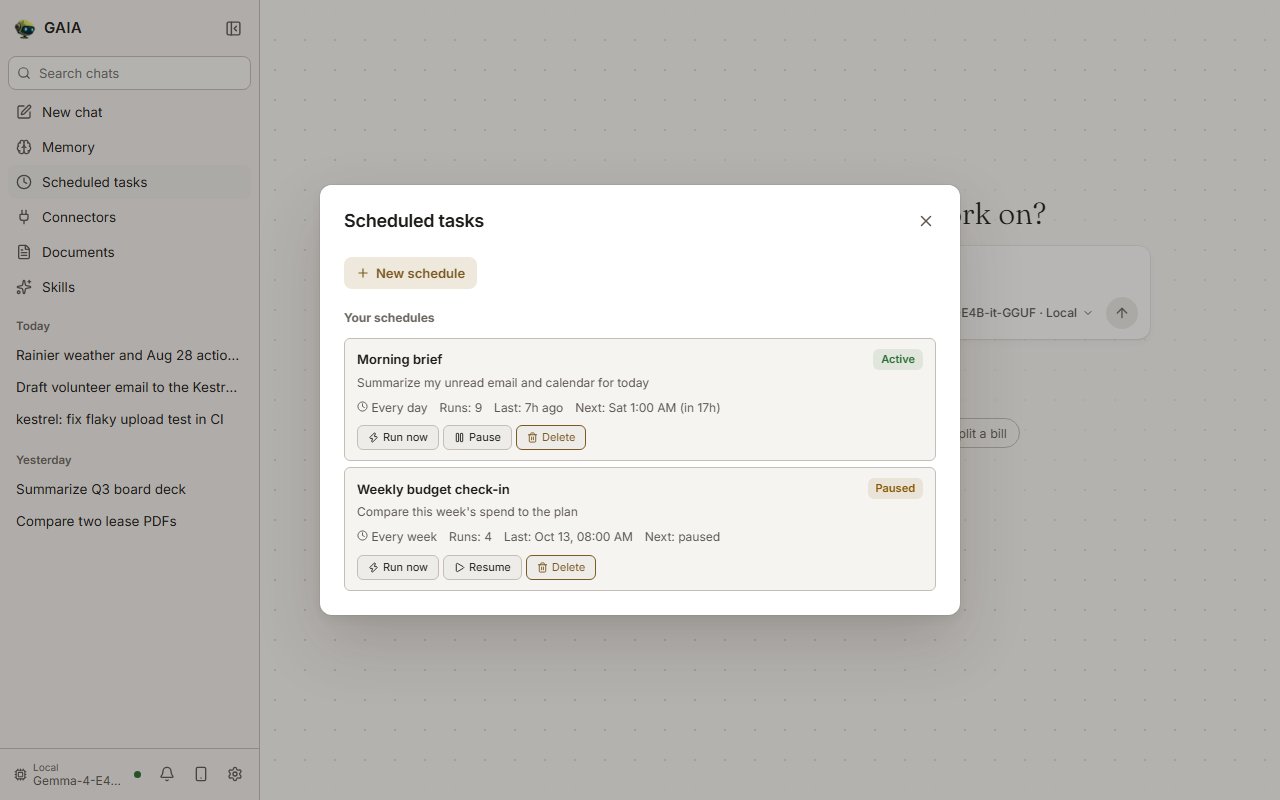
GAIA reads every word or rejects the schedule and says what to change; it never drops part of what you typed. It rejects:
- Invalid times such as
25:00or9:75, and a bareat 9(say9am,9pm,9:00, orevery morning at 9). - A part of the day that disagrees with the time (
every morning at 8pm), or one with no time (every morning). - One-time tasks (
tomorrow at noon,next friday,on feb 30). Schedules here repeat, so use a form likeevery friday at 9am. To run a prompt once, usegaia schedule add --atin a terminal. - Runs more often than once a minute. Each run is a full agent turn.
- A weekly time with no day, such as
weekly at 9amorevery 7d at 9am. Name the day:every monday at 9am. - Combinations that can’t be honored yet:
every other tuesday,every 2 days at 9am, monthly schedules, and windows that don’t start and end on the hour.
/. Pause, resume, or delete schedules from the panel; run counts and the next-run countdown update live. Run now runs a schedule once immediately, to try a new one without waiting for its first due time; its next scheduled run stays as it was, and the reply lands in the schedule’s chat like any other run. While a run is in flight, Run now is unavailable and a timed run that comes due is skipped.
Behavior notes:
- Scheduled runs use the GAIA agent and the model you picked; with a local model nothing leaves your machine.
- Nobody is there to approve a tool call during a scheduled run, so a run that reaches a step needing approval (a shell command, a file write) stops there and fails, naming the step. Do that work in a chat, where you can approve it.
- A run that fails shows its error on the schedule card and raises a notification in the notification center’s Errors tab. A run that finishes cleanly raises an unread notification with the start of its answer; runs that finished before the app opened don’t.
- Runs are suspended while mobile access (tunnel) is active, matching the autonomous agent loop’s security posture. Set
GAIA_AUTONOMOUS_ALLOW_TUNNEL=1to override. - One run executes at a time; overlapping schedules queue.
- Per-run timeout defaults to 300 s; override with
GAIA_SCHEDULE_TIMEOUT. - A schedule keeps its next run time across a restart of GAIA. The most recent run that came due while the PC was off or asleep, or GAIA was closed, still runs if GAIA is back within an hour of it; every other one shows in the run history as “Missed … while the PC was off or asleep, or GAIA was closed” and is not run late. Each run is taken by one GAIA server, so two servers sharing a chat database never run it twice, and a pause in one stops it in both. The first start after updating to this version counts nothing before itself: older versions restarted a task’s timer on every restart, so their gaps are not blamed on the PC.
- Times are your local time, taken from the browser’s time zone, and stay put across daylight-saving changes. A time skipped when clocks jump forward runs just after the jump; a time repeated when they fall back runs once. Schedules made before this was fixed were read in UTC; they move to this PC’s time zone on the next start.
/api/schedules (create/list/get), /api/schedules/{name} (pause/resume/cancel via PUT, delete via DELETE), /api/schedules/{name}/run (Run now, via POST), /api/schedules/{name}/results (run history), and /api/schedules/parse (natural-language preview).
Automations
Automations are reminders, summaries, alerts and triggers that GAIA runs on its own and sends to your Discord DM. To add one or change what it does, ask GAIA in chat. Settings → Automations lists them, and you can pause, resume or remove each one there. They need Discord connected first. See Automations.Discord
Message GAIA from Discord on your phone, and it answers from this PC. Only you can use it: GAIA answers DMs from the one account you pair, and anything that changes your PC waits for you to allow it. Set it up in Settings → Messaging. See Discord for the steps.Mobile access
Mobile access opens this PC’s GAIA on your phone. Open it from the phone button at the bottom of the sidebar, or under Phone access in the session panel, and scan the QR code.- On the phone, Add to Home Screen (Safari’s Share menu, or Chrome’s menu) installs GAIA as an app that opens full screen.
- Access doesn’t carry over: each time you turn mobile access on, scan the new QR code.
- API keys, logs and the full-access default can’t be read or changed from the phone.
- Scheduled tasks are suspended while mobile access is on.