First time here? Complete the Setup guide first to install GAIA.
Before you start
You need:- A Discord account and the Discord app on your phone (or any device you’ll chat from).
- GAIA installed on your PC, with the GAIA app or the GAIA terminal app.
- About five minutes. You’ll create your own private Discord bot. It’s free, and you don’t need to know anything about bots: GAIA opens each page for you and tells you what to click.
A bot is just a Discord account that a program controls. Yours is controlled only by GAIA on
your PC. A DM (direct message) is a private chat between two accounts, here you and your bot.
Set it up
- GAIA app
- Terminal app
- Open Settings → Messaging → Discord.
- Create your bot. Click Open Discord Developer Portal and sign in with your Discord account if asked. Click New Application, name it GAIA, and click Create. Then click Bot in the left menu, click Reset Token, and click Copy. The copied text is your bot’s token, which works like its password.
-
Connect it. Back in GAIA, paste the token and click Connect. GAIA keeps it in your
PC’s secure password store. This can take up to a minute.
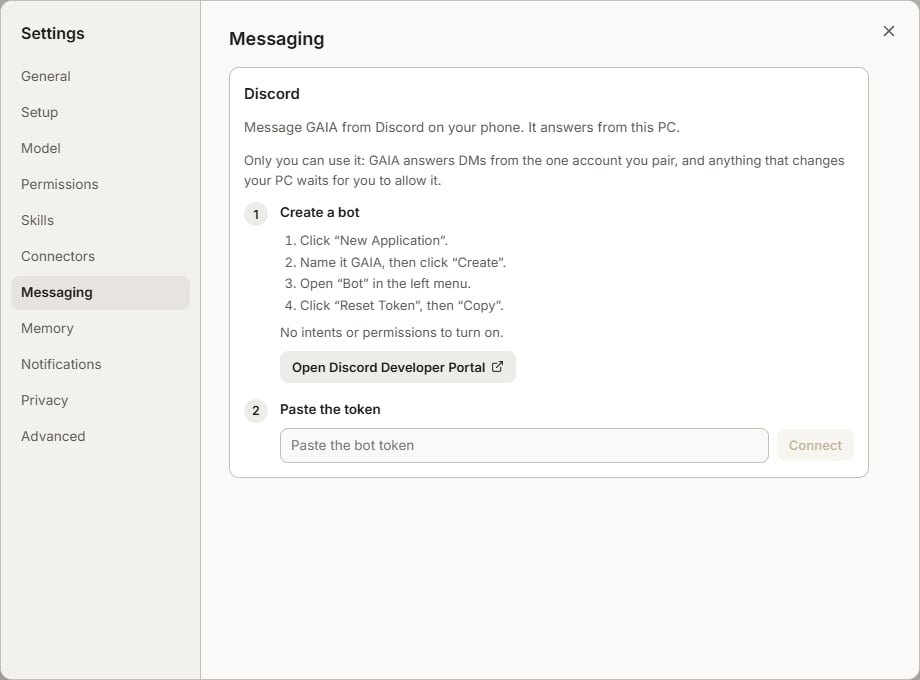
Steps 2 and 3: create the bot, then paste its token.
- Add the bot to a private server. Discord only lets you message a bot that shares a server with you, so make a server just for this: in Discord, click + in the server list, then Create My Own, then For me and my friends. Back in GAIA, click Open invite page and pick that server. The bot can’t do anything in the server; it’s only there so you can message it.
-
Claim the bot. GAIA shows a short code. Click Open the bot in Discord, click
Message, and send the code. Whoever sends the code becomes the only person GAIA
answers, so send it yourself.
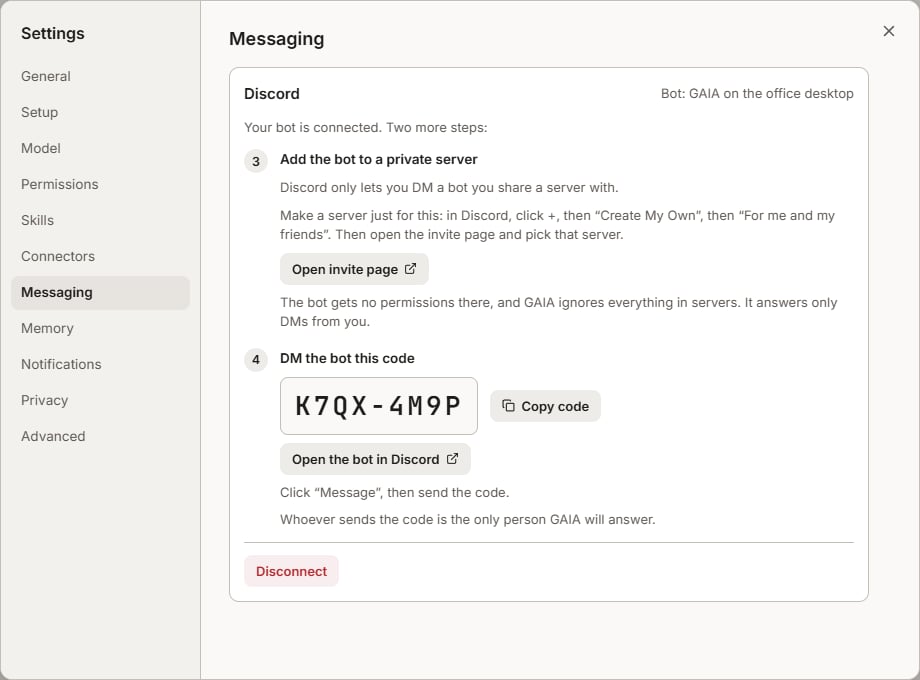
Steps 4 and 5: invite the bot to your server, then send it the code.
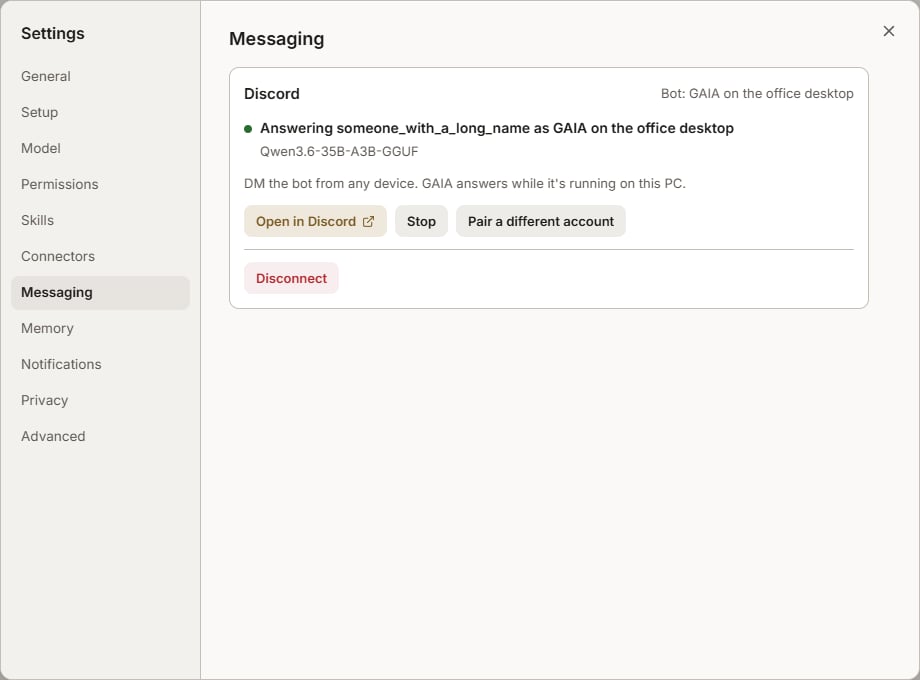
Set up: GAIA answers your Discord messages from this PC.
Chatting with GAIA
Message your bot the way you’d talk to GAIA on your PC:- “What’s in my Downloads folder?”
- “Summarize this PDF” (with the file attached)
- “Write today’s meeting notes to notes.md”
- “Are there new comments on my pull request?”
- Files go both ways. Attach a file and GAIA can read it. When GAIA makes a file, takes a screenshot or generates an image, it sends it back in the chat. You can also ask for any file on the PC: “send me my resume from Documents”. Files over 10 MB, key or password files, and anything in a hidden or app-settings folder (where apps keep sign-ins) stay on the PC.
- Reply to a message with Discord’s Reply and GAIA knows which one you mean: “do this one”.
- Start fresh by sending new chat. GAIA forgets the conversation so far, but keeps what you asked it to remember and all your reminders and alerts.
- Send corrections as a new message. A quick follow-up such as “actually, only the count” is answered together with the message before it. Editing a message you already sent doesn’t change anything, and GAIA tells you so.
- To stop GAIA, press Stop under “Thinking…”, or send stop.
- Long answers arrive as several messages.
- Send help for a short list of what you can say.
- After GAIA restarts (the PC rebooted, or you pressed Stop and Start) it begins a new conversation, and says so under its first answer.
GAIA asks before it changes anything
Reading your files and looking things up don’t need your OK. Before GAIA changes something, such as running a program, saving or deleting a file, or posting on GitHub, it sends you the exact action with buttons:- Allow does it once.
- Deny skips it.
- Always allow appears for some actions, so GAIA stops asking about that kind of action from then on.
Reminders, summaries and alerts
GAIA can message you on its own. Just ask:- “Remind me at 5pm to call the dentist.”
- “Every weekday at 8am, summarize what changed in my project.”
- “Tell me right away when someone opens an issue on github.com/my-org/my-app.”
- “Check in every 30 minutes, but only message me if something needs my attention.”
Privacy
- Your messages, and GAIA’s replies, pass through Discord’s servers like any other Discord chat. Don’t send passwords or other secrets. If GAIA ever needs one, it asks you to type it on the PC instead.
- The work itself happens on your PC: your files stay there unless GAIA sends you one.
- GAIA ignores every server channel, even in your private server. Only your DMs reach it.
Stopping, pausing and disconnecting
All of these are in Settings → Messaging → Discord (or type/discord in the terminal
app):
- Stop pauses GAIA on Discord, and it stays off until you press Start, even after you reopen GAIA.
- Restart stops and starts it in one step.
- Ask me again for all of these appears once you’ve chosen Always allow for something. It lists what you allowed and clears the list, so GAIA asks again.
- Pair a different account shows a new code, so another Discord account can take over. This also clears every Always allow you chose.
- Disconnect forgets the bot and the paired account. Your bot still exists in the Developer Portal, and you can delete it there.
If something goes wrong
GAIA doesn't answer my messages
GAIA doesn't answer my messages
Check that the PC is on and awake. After the PC restarts, open the GAIA app or the
terminal app once, and GAIA starts answering again. You can close it afterwards. A
message sent while the PC was off or asleep isn’t run later; GAIA says so, and you can
send it again.
The bot doesn't reply to the code
The bot doesn't reply to the code
Make sure you sent it as a direct message to the bot, not in the server. Codes expire
after an hour or a few wrong tries: click Show a pairing code and send the new one.
Discord no longer accepts this token
Discord no longer accepts this token
The token was reset, or the bot was deleted. In the Developer Portal, open your
application, click Bot → Reset Token → Copy, and paste the new token in Settings.
Another PC is answering this bot
Another PC is answering this bot
The same bot is connected on two PCs, and only one can answer. Click Answer from this
PC on the one you want, or create a second bot for the other PC.
GAIA's Discord connector already uses this bot
GAIA's Discord connector already uses this bot
That bot is already used for a different GAIA feature. Create a second application in
the Developer Portal and use its token here.
GAIA couldn't read the saved bot token
GAIA couldn't read the saved bot token
Your PC’s password store is locked. On Linux, log in to your desktop session; then click
Try again.
Good to know
- GAIA answers one Discord account per PC. It’s one assistant with one conversation, so a second person would see the first person’s chat.
- It works in direct messages only: no server channels, voice or slash commands.